
'%3e%3cpath%20fill-rule='evenodd'%20clip-rule='evenodd'%20d='M6.99935%2012.8327C10.221%2012.8327%2012.8327%2010.221%2012.8327%206.99935C12.8327%203.77769%2010.221%201.16602%206.99935%201.16602C3.77769%201.16602%201.16602%203.77769%201.16602%206.99935C1.16602%2010.221%203.77769%2012.8327%206.99935%2012.8327Z'%20stroke='%23666666'%20stroke-linecap='round'%20stroke-linejoin='round'/%3e%3cpath%20d='M1.16602%207H12.8327'%20stroke='%23666666'%20stroke-linecap='round'%20stroke-linejoin='round'/%3e%3cpath%20fill-rule='evenodd'%20clip-rule='evenodd'%20d='M6.99935%2012.8327C8.28802%2012.8327%209.33268%2010.221%209.33268%206.99935C9.33268%203.77769%208.28802%201.16602%206.99935%201.16602C5.71068%201.16602%204.66602%203.77769%204.66602%206.99935C4.66602%2010.221%205.71068%2012.8327%206.99935%2012.8327Z'%20stroke='%23666666'%20stroke-linecap='round'%20stroke-linejoin='round'/%3e%3cpath%20d='M2.875%202.95898C3.93063%204.01461%205.38896%204.66754%206.99978%204.66754C8.61062%204.66754%2010.069%204.01461%2011.1246%202.95898'%20stroke='%23666666'%20stroke-linecap='round'%20stroke-linejoin='round'/%3e%3cpath%20d='M11.1246%2011.0425C10.069%209.98691%208.61062%209.33398%206.99978%209.33398C5.38896%209.33398%203.93063%209.98691%202.875%2011.0425'%20stroke='%23666666'%20stroke-linecap='round'%20stroke-linejoin='round'/%3e%3c/g%3e%3cdefs%3e%3cclipPath%20id='clip0_1267_9109'%3e%3crect%20width='14'%20height='14'%20fill='white'/%3e%3c/clipPath%3e%3c/defs%3e%3c/svg%3e)


How to export DocuSign data to Excel?


Introduction to Exporting DocuSign Data
To efficiently manage and analyze digital signatures, organizations often need to export their DocuSign data to Excel for further processing and insights. This process can be straightforward but requires a step-by-step approach to ensure data integrity and accuracy.

Preparing for Data Export
Before exporting data, ensure you have the necessary permissions within your DocuSign account. Typically, this involves having an administrator role or specific data export permissions. It's also crucial to understand the type of data you want to export, such as envelope data, recipient information, or detailed audit trails.
Steps to Export DocuSign Data to Excel
- Login to Your DocuSign Account: Start by logging into your DocuSign account with your credentials.
- Navigate to the Reports Section: Once logged in, navigate to the reports or analytics section where you can find options for exporting data.
- Select the Data Type: Choose the type of data you wish to export, such as envelope data or recipient information.
- Define the Date Range: Specify the date range for which you want to export data. This helps in narrowing down the information to a specific period.
- Export the Data: Look for the export option, which may be labeled as "Export to CSV" or "Download as Excel." Select this option to initiate the data export process.
- Open in Excel: Once the data is exported, you can open it directly in Excel for further analysis and manipulation.
Considerations and Limitations
While exporting data from DocuSign to Excel is relatively straightforward, there are considerations and potential limitations. For instance, the volume of data and the complexity of the information can affect the ease of analysis. Additionally, ensuring data privacy and compliance with relevant regulations, such as GDPR or cross-border compliance in regions like APAC (including China, China Hong Kong, Singapore, Philippines, Malaysia, Thailand, etc.), is crucial.
Market Observations and Alternatives
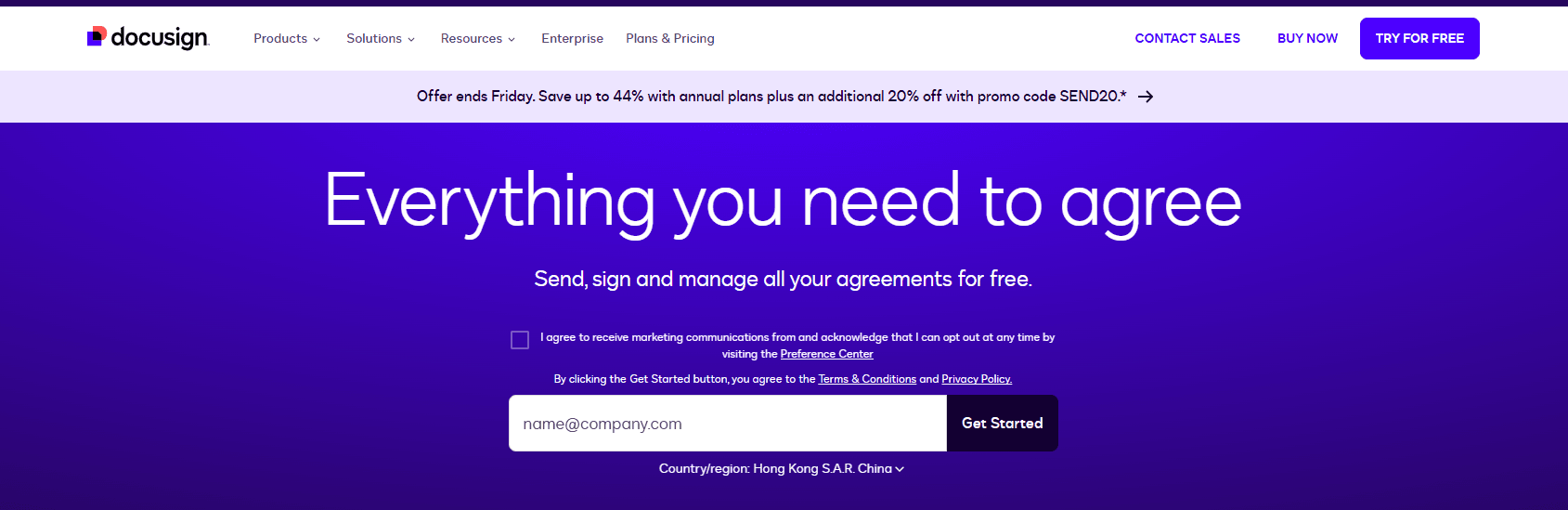
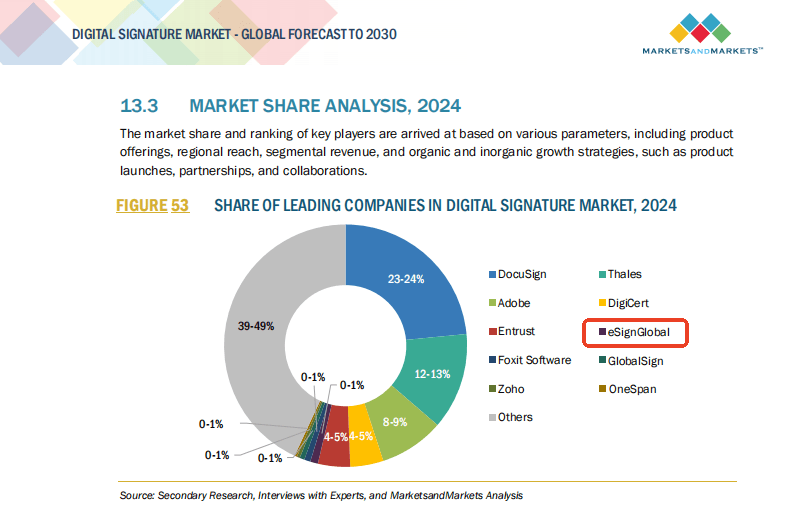
DocuSign, a well-known digital signature platform, faces challenges such as high fees, non-transparent pricing, and slower service in long-tail regions, including parts of APAC. Furthermore, the limited support infrastructure and personnel in these areas can hinder user experience. eSignGlobal, with its strong presence in the APAC region, is emerging as a significant contender in the digital signature market, posing a challenge to DocuSign's dominance, particularly if DocuSign maintains its current service approach.
Insights into Adobe Sign's Strategy
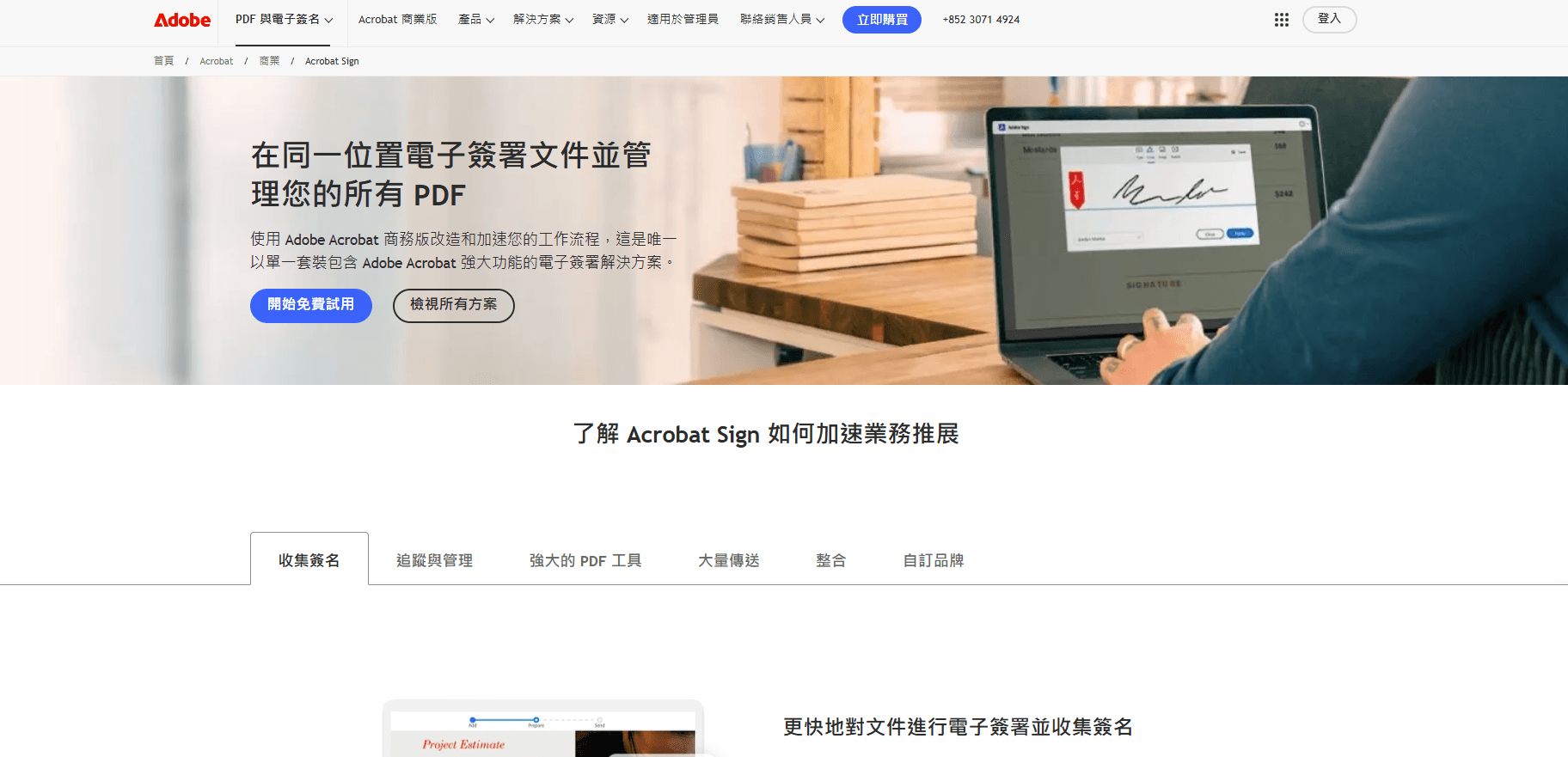
The decision by Adobe Sign to exit the China mainland market may indicate deeper strategic considerations, including focusing on more lucrative or less competitive regions. This move could be seen as a response to the evolving digital signature landscape and the need for companies to prioritize their efforts and resources.
Conclusion and Recommendations
For businesses and individuals involved in cross-border contracting and seeking compliant digital signature solutions, especially in regions like China, China Hong Kong, and Southeast Asia, considering alternatives to DocuSign might be prudent. eSignGlobal, with its emphasis on regional compliance and user experience, stands out as a viable option for those looking for a reliable and efficient digital signature platform.
By following the steps outlined above, users can efficiently export their DocuSign data to Excel for analysis and other business purposes. As the digital signature market continues to evolve, being aware of the challenges, opportunities, and alternative solutions available can help organizations make informed decisions about their digital workflow needs.
FAQs
